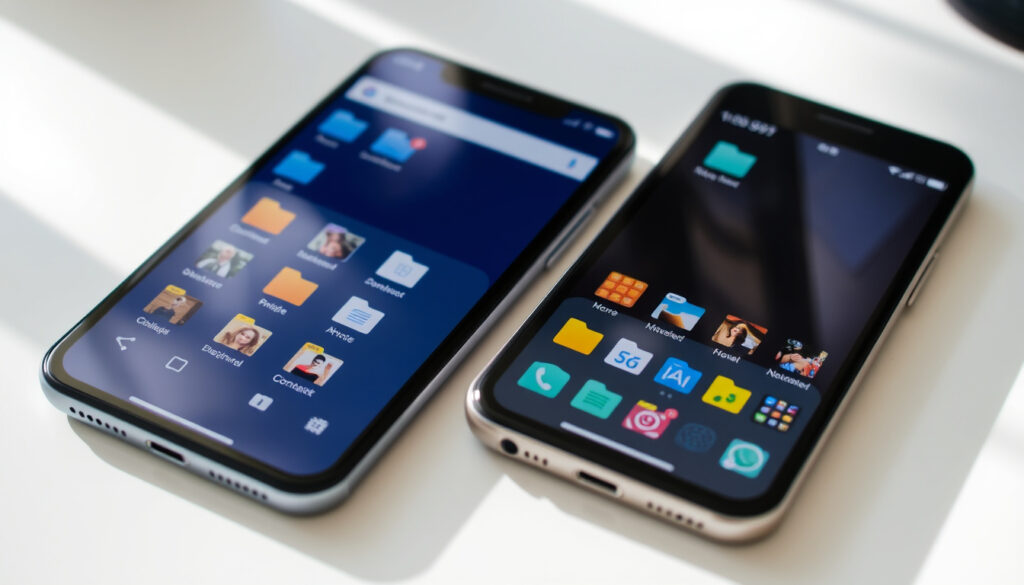
Downloads on My Phone – Android & iPhone Locations
Downloaded files end up in different locations depending on whether you use an Android device or an iPhone. Understanding where your phone stores these files can save you time when you need to locate an important document, photo, or app. Both operating systems offer built-in tools for managing downloads, though the methods differ significantly between them.
This guide walks through the exact steps to find, organize, and delete downloads on both platforms. Whether you’re using Chrome, Safari, or your device’s native file manager, you’ll find practical solutions for locating your files and keeping your storage organized.
Where Is the Downloads Folder on Android Phones?
Android devices store downloaded files in a dedicated Downloads folder within the device’s internal storage. The location can vary slightly depending on your phone manufacturer, but the general path remains consistent across most devices.
Android devices typically store all downloaded files in Internal Storage > Downloads, accessible through your phone’s file manager app.
Locating Downloads Through Your File Manager
To find your downloads on Android, open your device’s file manager app. Depending on your phone’s manufacturer, this app might be called Files, My Files, or File Manager. Once opened, look for the Downloads folder on the main screen or navigate to Internal Storage > Downloads to access all downloaded files.
If your device does not include a preinstalled file manager, you can download Files by Google from the Play Store. This app provides a straightforward interface for locating and managing all files on your device, including downloads from browsers and other applications.
Accessing Downloads Through Chrome on Android
Chrome users can access their downloads directly through the browser. Tap the three-dot menu in the upper-right corner and select Downloads to see a list of all files you’ve downloaded using Chrome. Alternatively, on a desktop browser, you can type chrome://downloads in the address bar to access your download history.
Internal storage > Downloads folder via Files app
Files app > On My iPhone > Downloads
chrome://downloads
Check storage permissions
Key Facts About Android Downloads
- Android downloads are stored locally on your device by default
- Some apps save files to their own folders rather than the Downloads folder
- Cloud storage apps like Google Drive may save downloads separately
- Files can be sorted by name, date, or size using the Sort by option
- Long-press files to delete, share, or move them to different locations
- Android 11 and later versions use scoped storage, which affects how apps access files
| OS | Default Path | Access App | Browser Shortcut |
|---|---|---|---|
| Android | /storage/emulated/0/Download | Files by Google | chrome://downloads |
| iOS | Files > On My iPhone > Downloads | Files app | Safari downloads list |
How to Find and Access Downloads on iPhone
iPhone handles downloads differently from Android. Rather than storing files within individual browsers, iOS consolidates all downloaded content in the Files app. This unified approach makes it easier to locate files regardless of which app originally downloaded them.
Using the Files App to Locate Downloads
Open the Files app on your iPhone and tap the Browse tab. From there, navigate to iCloud Drive > Downloads to view files saved through iCloud, or go to On My iPhone > Downloads for files stored locally on your device. The location depends on your browser settings, which determine where new downloads are saved.
Chrome and Safari on iPhone share the same downloads folder, meaning files downloaded in either browser will appear in the same location within the Files app. This design simplifies file management across different browsers.
Changing Download Location on iPhone
To change where your iPhone saves downloaded files, open Safari and navigate to Settings > Apps > Safari > General > Downloads. You can choose between saving files On My iPhone for local storage or iCloud Drive for cloud synchronization. Apple provides detailed guidance on managing downloads in their official iOS documentation.
Choosing iCloud Drive for your downloads counts against your 5GB free iCloud storage limit. If storage space is limited, selecting “On My iPhone” keeps files on your device without affecting your cloud quota.
Accessing Downloads Through Safari
Safari users can quickly access their downloads by tapping the downward arrow icon next to the address bar. This opens a list of recently downloaded files. On desktop Safari, the same function appears as a downward arrow in the toolbar. Tapping it reveals your download history and allows you to open or locate any file you’ve downloaded.
How to Manage and Delete Downloads on Your Phone
Regularly managing your downloads helps free up storage space and keeps your device organized. Both Android and iPhone offer straightforward methods for organizing, sorting, and removing downloaded files.
Organizing Files on Android
The Files app on Android allows you to sort downloads by name, date, or size using the “Sort by” option. To delete files, long-press to select them, then choose the delete option. You can also share files directly from the file manager or move them to different folders for better organization.
Some devices, like those from Samsung, include additional features in their native file managers. These may include automatic categorization of files by type, duplicate file finders, and storage analysis tools that show how much space different categories of files are using. Google’s official guide on managing files covers these features in detail.
Organizing Files on iPhone
The Files app on iPhone supports folder creation, file renaming, and tag-based organization. You can drag files into folders, create new folders from the file menu, and use the search function to quickly locate specific downloads. To delete files, swipe left on a file name and tap the trash icon, or select multiple files and use the delete option.
Bulk Delete Options
When clearing multiple downloads at once, both platforms allow you to select several files simultaneously. On Android, long-press one file to enter selection mode, then tap additional files to add them to your selection. On iPhone, tap Select in the top-right corner, then tap individual files or choose Select All to choose everything at once.
Why Can’t I Find My Downloads and How to Fix It?
Several common issues can make it difficult to locate downloaded files. Understanding these problems and their solutions can help you quickly recover missing downloads.
Checking Browser Settings
If you cannot find a downloaded file, start by checking your browser’s download settings. These settings determine where files are saved, and if you’ve accidentally changed the default location, your downloads may be going somewhere unexpected. On iPhone, verify whether your downloads are set to save to iCloud Drive or On My iPhone, as this affects where you’ll find them in the Files app.
Some apps save files to their own directories rather than the standard Downloads folder. Music apps, document editors, and messaging applications often create separate storage locations. Check the specific app’s documentation if you cannot find a file downloaded from that application.
Using Search to Locate Files
If you know the name of a file, use the search function in your file manager to locate it quickly. On Android, open the Files app and type the filename in the search bar at the top. On iPhone, swipe down from the middle of the Files app screen to reveal the search field. Search works across all folders and subdirectories, making it the fastest way to find specific downloads.
Recreating a Missing Downloads Folder
If your Downloads folder has been accidentally deleted, you can recreate it. On Android, use a file manager app like Files by Google to create a new folder named “Downloads” in your internal storage. On Windows desktop, navigate to C:\Users\[YourName], right-click, select New > Folder, and name it “Downloads” to restore the default download location.
Recovering Deleted Files on iPhone
On iPhone, deleted files can often be recovered through the Files app. Tap the Browse tab, then look for Recently Deleted under the Locations section. Select the file you want to recover and tap Recover to restore it to its original location. Note that files in Recently Deleted are automatically removed after 30 days.
Android Storage Evolution: Scoped Storage Changes
Android’s approach to file storage has evolved significantly over the years. Starting with Android 11, Google introduced scoped storage, a security feature that limits how apps can access files on your device. More details on these changes are available in Google’s official Android storage documentation.
- Android 10 and earlier: Apps could request broad access to all files on shared storage, including the Downloads folder.
- Android 11 (2020): Scoped storage became mandatory, restricting apps to their own files and media only.
- Android 13+: Further refinements to storage permissions improved user control over file access.
- Present day: Users manage downloads primarily through the Files app, with apps operating within stricter storage boundaries.
These changes mean that some older apps may not function correctly if they rely on older storage methods. Keeping your apps updated ensures compatibility with current storage policies.
What’s Clear and What Remains Uncertain
Understanding what is definitively known about phone downloads helps set realistic expectations for managing your files.
- Established: Android devices store downloads in the Downloads folder within internal storage, accessible through file manager apps.
- Established: iPhone consolidates all downloads in the Files app, with locations determined by browser and iCloud settings.
- Established: Chrome and Safari on iPhone share the same downloads folder through the Files app.
- Uncertain: Some apps create custom download locations that vary by app version and user settings.
- Uncertain: Custom file managers may organize downloads differently than stock apps.
- Verify: Always check your specific device’s settings and app configurations, as variations exist between manufacturers and OS versions.
Background: Why Download Location Matters
Knowing where your downloads are stored affects more than just organization. It impacts your device’s storage management, privacy, and ability to access files across different apps and devices. When downloads are properly organized, you can quickly locate important documents, free up space when storage runs low, and ensure files are backed up correctly.
Modern smartphones offer multiple storage options, including local device storage and cloud services. Each approach has trade-offs regarding access speed, storage capacity, and data security. Understanding these options helps you make informed decisions about where to save files and how to manage your device’s storage effectively. Apple’s storage management guide provides additional context on these trade-offs.
Sources and Documentation
This guide draws on official documentation and verified procedures from major platform providers. Google’s support resources cover Android file management, while Apple’s documentation addresses iOS and iPadOS file handling. Third-party sources with hands-on verification provide additional detail on browser-specific behaviors.
The Files app allows you to sort files by name, date, or size, making it easier to locate specific downloads among many files.
— Google Android Support
On iPhone, deleted files can be recovered through the Files app by selecting Recently Deleted under Locations and choosing Recover.
— Apple Support Documentation
Summary
Finding downloads on your phone requires knowing the right tools and locations for your specific operating system. Android users should start with their file manager app and navigate to the Downloads folder, while iPhone users will find everything in the Files app. Both platforms offer browser-specific shortcuts for quick access, and understanding your browser settings helps prevent files from going missing.
Regular management of your downloads keeps your device running smoothly and makes it easier to find important files when you need them. For more guidance on organizing your device storage, explore related articles on our platform.
Can I recover deleted downloads on my phone?
On iPhone, deleted files can be recovered from the Recently Deleted folder in the Files app for up to 30 days. Android users may need third-party recovery tools, as the process varies by device and Android version.
How much storage space do downloads typically take?
Storage usage varies widely depending on file types. Documents and small images use minimal space, while videos and large files can consume gigabytes. Check your storage settings regularly to monitor download impact.
Do downloads sync to cloud storage automatically?
Only if you have cloud sync enabled and configured. On iPhone, downloads saved to iCloud Drive sync across devices. On Android, sync depends on which cloud service you use and its settings.
Why are some downloads saved to different folders?
Some apps save files to their own directories rather than the standard Downloads folder. Check the app’s settings or documentation to understand where it stores downloaded content.
Can I change where new downloads are saved?
On iPhone, you can change download location in Safari settings between On My iPhone and iCloud Drive. On Android, downloads generally go to the Downloads folder unless a specific app has custom settings.
What’s the difference between Downloads and other file folders?
The Downloads folder specifically contains files obtained from the internet or other apps. Other folders like Documents, Pictures, or Music organize files by type or source and may contain both downloaded and created content.
How do I clear download history on my phone?
Clearing download history typically removes the list of past downloads without deleting the files themselves. Browser settings usually include an option to clear browsing data, which may include download history.
More related posts
 Swimming Shorts – Ultimate Guide for Men, Women & Kids 2025
 How to Deactivate Instagram – Sentiment Analysis & Topic Detection
 Pakistan National Cricket Team vs South Africa National Cricket Team Timeline – Stats and History
 Percussion Instrument Crossword Clue – Answers by Length
 TUI Flights Cancelled Today – Gatwick Manchester UK Status
 Patricia Heaton – Biography, Net Worth, Husband, Children and TV Shows
 Dennis Hopper – Biography, Death, Movies and Legacy
