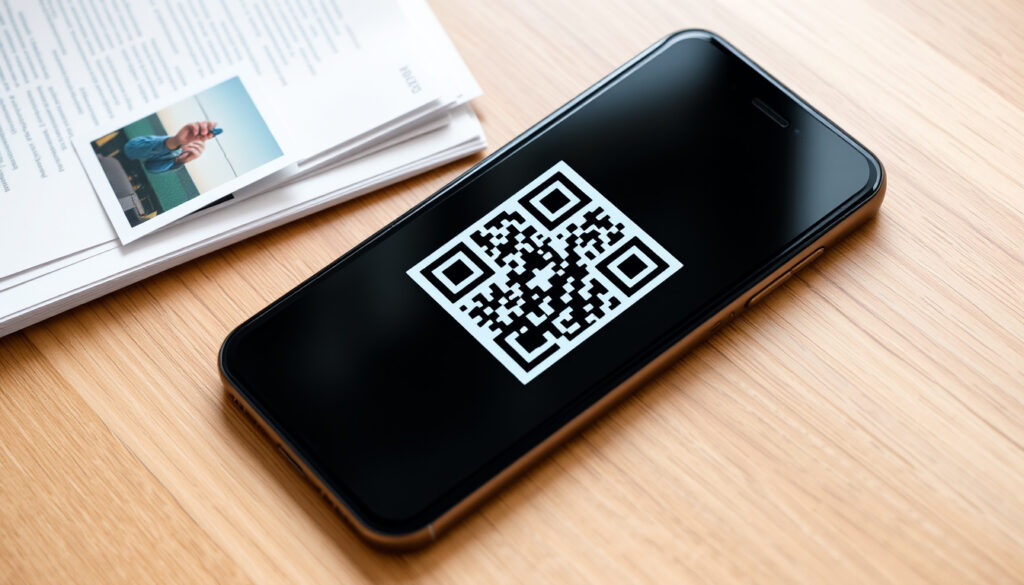
How to Scan on iPhone – Documents, QR Codes & Photos
How to Scan Documents on iPhone (Notes & Files)
Your iPhone comes with a built‑in document scanner that doesn’t require any additional apps. The feature is tucked inside the Notes and Files apps, and with iOS 26 it has become even more accessible. Here is a quick overview of the four main ways to scan.
Documents (Notes app)
Open Notes, tap the Camera icon, then choose Scan Documents. Auto‑capture detects page edges. Save as PDF or keep in the note.
QR Codes (Camera app)
Open Camera, point at a QR code, and tap the notification that appears. No extra software needed.
Photos (Files app)
Open Files, tap the More button (…), then Scan Documents. Captures photos as documents and saves directly to your chosen folder.
Free & Paid Options
Built‑in tools are completely free. Third‑party apps like Adobe Scan or Microsoft Lens offer OCR and cloud sync at no cost (with optional subscriptions).
Key insights
- iPhone includes two built‑in scanning tools (Notes and Files) – both free.
- QR code scanning is native to the Camera app; no separate app needed.
- Scanned documents are saved as PDFs by default in Notes; Files app allows saving to custom locations.
- iOS 26 introduced a new “Attachments button” shortcut for scanning in Notes (vs the earlier “Camera” button).
- For photo scanning, the built‑in scanner may not produce great quality – dedicated photo scanning apps like Google PhotoScan yield better results.
- Multi‑page scanning is supported in both Notes and Files – the camera detects edges and auto‑captures subsequent pages.
- You can sign scanned documents directly in the Markup editor after scanning.
- Live Text (iOS 15+) allows copying text from scans – effectively OCR without third‑party apps.
Key facts about iPhone scanning
| Fact | Details |
|---|---|
| Free built‑in scanner | Yes, in Notes and Files apps |
| QR code scanner | Native in Camera app (iOS 11+) and Control Center |
| Default file format | PDF (can be changed to JPEG) |
| Multi‑page support | Yes, continuous scan mode |
| Sign documents | Yes, via Markup after scan |
| OCR built‑in | Live Text available on iPhone Xs+ (iOS 15+) |
| Third‑party apps | Adobe Scan, Scanner Pro, Microsoft Lens (free) |
| Maximum pages per scan | No limit (in Notes/Files) |
How to Scan a QR Code on iPhone
Scanning a QR code is one of the quickest tasks you can perform on an iPhone. The Camera app has been able to read QR codes since iOS 11, and later versions added a Control Center widget for even faster access.
Using the native Camera app
Open the Camera app, point it at a QR code, and wait for a yellow notification banner to appear at the top. Tap the banner to open the link or action. This works for website URLs, Wi‑Fi credentials, and many other code types.
Using Control Center QR scanner widget
From iOS 12 onward, you can add a QR scanner to Control Center. Go to Settings > Control Center > Customise Controls, then add the “QR Code Reader” button. Once added, tap it in Control Center to launch the scanner directly.
Scanning QR codes from saved images
If you have a screenshot or a photo containing a QR code, open it in the Photos app. iOS will detect the code and show a small QR icon at the bottom of the screen. Tap it to follow the link. Alternatively, use Live Text: long‑press the code, then select “Open this URL”.
If the QR code does not trigger a notification, ensure that the “Scan QR Codes” toggle is enabled in Settings > Camera. Also check that your iPhone is running at least iOS 11 – older versions require a third‑party app.
How to Scan Photos on iPhone
Apple’s built‑in scanner is designed primarily for paper documents, receipts, and forms, not for glossy photo prints. If you need to digitise old photographs, you may get better results with a dedicated app.
Using the Notes app to scan photos
Open a note, tap the Camera icon, and choose Scan Documents. Place the photo on a flat surface with good lighting. The scanner will attempt to detect the edges of the photo, but because the tool is optimised for documents, it may not perfectly capture glossy finishes. After scanning, you can adjust the corners manually.
Using the Files app to capture photo scans
In the Files app, tap the More button (…), then Scan Documents. The same camera interface opens. After capture, you can save the scan directly into iCloud Drive or a local folder as a PDF or JPEG image.
Best third‑party apps for photo scanning
Google PhotoScan is a free app designed specifically for digitising printed photos. It uses guided capture to eliminate glare and correct perspective. Microsoft Lens also offers a “Photo” mode that enhances contrast and reduces shadows. Both are available on the App Store and provide higher quality results than the native scanner for old albums.
How to Scan for Free on iPhone (No Subscription Needed)
One of the most common questions about scanning on iPhone is whether you need to pay for an app. The answer is no – the built‑in tools in Notes and Files are completely free, and they handle almost every everyday scanning need.
Built‑in free scanning with Notes and Files
As detailed above, both Notes and Files include a Scan Documents option. There are no hidden charges, no trial periods, and no ads. You simply open the app, tap the scan button, and capture your document. The resulting file is saved as a PDF on your device.
Free QR code scanning via Camera app
The Camera app’s QR code reader is also free and has been since iOS 11. No subscription or in‑app purchase is required.
Avoiding premium scanner app subscriptions
Many third‑party scanner apps (Adobe Scan, Scanner Pro, etc.) offer free tiers, but some push premium features like OCR, cloud sync, or advanced editing behind a subscription. Before paying, check whether the free built‑in tools or the free version of Microsoft Lens can meet your needs. For most users, the iPhone’s native scanner is sufficient.
According to Apple Support, the document scanner in Notes and Files supports automatic capture, manual capture, page‑by‑page scanning for multi‑page documents, and post‑scan adjustment like cropping corners. All of this is included in iOS at no extra cost.
How to Save, Organize, and Share Scanned Documents on iPhone
Once you have scanned a document, the next question is where it goes and how to manage it. The location depends on which app you used.
Understanding default scan location (Notes vs Files)
If you scan inside a note, the PDF is attached to that note. It exists within the Notes app and can be exported or shared later. If you scan in Files, you choose a destination folder – typically iCloud Drive or On My iPhone – and the PDF is saved directly there as a standalone file.
Exporting scans as PDF or JPEG
From Notes, you can tap and hold a scanned document, then choose Share to send it as a PDF via email, AirDrop, or messaging. In Files, you can long‑press the file and select Share or Duplicate. To change the file type, some users open the scan in Markup and export as an image, but the default output remains PDF.
Organizing scans in folders and tags
In the Files app, you can create folders, rename scans, and even add tags (via the info panel) to make future searching easier. iCloud Drive syncs these folders across all your Apple devices. In Notes, you can create separate notes for different categories or use the new “Quick Note” feature to keep scans accessible.
Signing scanned documents on iPhone
After scanning, tap the document to open it in full screen, then tap the Markup icon (a pen tip in a circle). Use the signature tool to add your handwritten signature, then tap Done. The signed document remains in the same note or folder. As CNET notes, this feature is particularly useful during tax season.
Evolution of iPhone scanning features
- 2007–2010 – No native scanning; third‑party apps only.
- 2011 (iOS 5) – Notes app gains basic text entry, no scan.
- 2017 (iOS 11) – Integrated document scanning via Notes (Camera > Scan Documents) and Files introduced.
- 2018 (iOS 12) – QR code scanning added to Camera app (Control Center widget later).
- 2021 (iOS 15) – Live Text OCR; can copy and translate text from scans.
- 2025–2026 (iOS 26) – Redesign of scan button in Notes; “Attachments button” replaces Camera button in some contexts; new Preview app includes scanning, markup, and PDF tools.
What’s certain vs what’s uncertain about iPhone scanning
| Established information | Information that remains unclear |
|---|---|
| Notes and Files apps can scan documents for free. | iPhone 17 scanning features are speculative based on current trends. |
| Camera app can scan QR codes without extra software. | Whether future iOS versions will keep the same scan button locations. |
| Scans are saved as PDFs (notes) or you choose location (Files). | Effectiveness of auto‑edge detection in low light varies by model. |
| Multi‑page scanning works automatically when you hold camera steady. | Long‑term storage reliability of scans in iCloud vs local storage. |
| iOS 26 exists and modifies the scanning interface. | – |
Why scan features matter: background and market trends
Apple has prioritised built‑in scanning since iOS 11 to reduce dependency on third‑party apps. The move was driven by user demand for quick, private document handling without leaving the Apple ecosystem.
QR code scanning adoption surged during the COVID‑19 pandemic – contactless menus and check‑ins made it a critical default feature. Apple responded by making QR scanning effortless through the Camera app and Control Center.
The recent shift from a Camera button to an Attachments button in iOS 26 reflects a broader iOS redesign toward contextual toolbars. This change simplifies the scanning flow, especially for users who regularly attach files to notes.
Photo scanning remains a gap in Apple’s offering. The native scanner is optimised for flat paper documents, not glossy prints. Many users turn to Google PhotoScan or dedicated hardware for better results, as noted in user forums and tech reviews.
A recurring question on Reddit asks “How to file/store documents I scan with my iPhone?” – indicating a UX pain point: many users do not realise that scans go to Notes by default, not a dedicated scanner gallery. Apple may address this in future updates with a more prominent save‑to‑location prompt.
Sources and expert guidance
“In the Files app, tap the More button … then tap Scan Documents.”
Apple Support
“Open a note in the app. Tap Camera > Scan Documents.”
“If you’re on iOS 26, tap the Attachments button (the paperclip icon), then tap Scan Documents.”
CNET
“How to file/store documents I scan with my iPhone?”
Reddit r/iphone
What’s next for iPhone scanning
Future iOS updates are expected to deepen the integration between scanning and iCloud Drive, making it easier to store and retrieve documents. Improved edge detection for curved pages and glossy photos is likely, along with possible AI‑enhanced image cleanup such as automatic straightening and shadow removal. QR code scanning may gain background execution, allowing codes to be recognised without opening the Camera app. Apple may also introduce a dedicated “Scanner” folder or a standalone scanner app for power users who need advanced features.
Frequently asked questions
Can I scan on iPhone without an app?
Yes. The built‑in Camera app scans QR codes; Notes and Files apps scan documents – no third‑party app required.
How do I scan a document on iPhone and save as PDF?
In Notes, scan a document and it is automatically saved as a PDF. In Files, after scanning you can save as PDF by choosing the location.
How to scan text from a document (OCR) on iPhone?
Use Live Text (iOS 15+). After scanning, tap and drag to select text, then copy or translate. Works in Notes and Files scans.
Are there free scanning apps for iPhone?
Built‑in tools are completely free. Third‑party apps like Microsoft Lens and Adobe Scan offer free versions with optional subscriptions.
How to scan a QR code from a photo in Photos app?
Open the photo, tap the QR code icon that appears in the bottom corner (if iOS detects it), or use Live Text to open the link.
How to scan multiple pages on iPhone?
When scanning in Notes or Files, keep the document in view – iPhone automatically captures the next page. Tap “Save” after all pages.
How to sign scanned documents on iPhone?
After scanning, tap the scan to open it, tap the Markup icon (pen tip), then use the signature tool to add your signature.
For more tech how‑to guides, see How to Stay Safe Online and How to Deactivate Instagram.
External resources: Apple Support – Scan documents on iPhone or iPad, Adobe – How to scan documents on iPhone into PDF, CNET – Sign or scan papers: iPhone hidden document scanner (taxes), Apple – Use Live Text on iPhone, Microsoft Lens (App Store).
More related posts
 Signs of ADHD in Kids – Symptoms by Age, Boys vs Girls, How to Help
 Real Madrid LaLiga Legal Dispute – Supreme Court Win, UEFA Settlement
 Ollie Watkins – Career Stats, Biography and Clubs 2025
 Ian Holm – Biography, Death, Movies and Legacy
 120 lbs to kg – Exact NIST Conversion (54.43 kg)
 Clifford the Big Red Dog – Complete Franchise Guide
 Student Loan Repayment Threshold – UK Rates for 2026/27
 Clothes Alterations Near Me – Best Local Services and Prices
